Syncing 360° Video with GPS (DJI SRT / GPX)
Sync your 360° video to a map route with a DJI .SRT or GPX sidecar: a position marker follows the route during playback.
2026-09-26 · 5 min read
360° video is the fastest way to capture a site as it is — but on its own it has one problem: it does not know where it is. Unlike photos, video files carry no EXIF GPS tag. The position data lives in a separate sidecar file the camera writes during the flight or walk. Upload that file alongside the video and the video stops being a recording and becomes a navigable data layer on the map.
Supported sidecars (DJI SRT; Insta360/GoPro/Ricoh GPX)
The track format and export path differ per manufacturer:
| Device | Track format | Where it comes from |
|---|---|---|
| DJI | .SRT |
Written next to the video when subtitle/telemetry recording is on |
| Insta360 | .GPX |
GPX export from Insta360 Studio |
| GoPro | .GPX |
GPX export via Quik / GoPro Player |
| Ricoh Theta | .GPX |
An external GPS logger — most Theta models do not record GPS |
| Other | .SRT / .GPX |
The manufacturer's telemetry export |
The critical rule: the sidecar's base name must match the video exactly. flight-01.mp4 pairs with flight-01.srt. If the names differ, the track cannot be bound to the video and the video uploads without position.
DJI's .SRT is technically a subtitle file with a timestamp, latitude/longitude and altitude embedded in each subtitle block. GPX is the standard GPS track format. Both do the same job: map time → position.
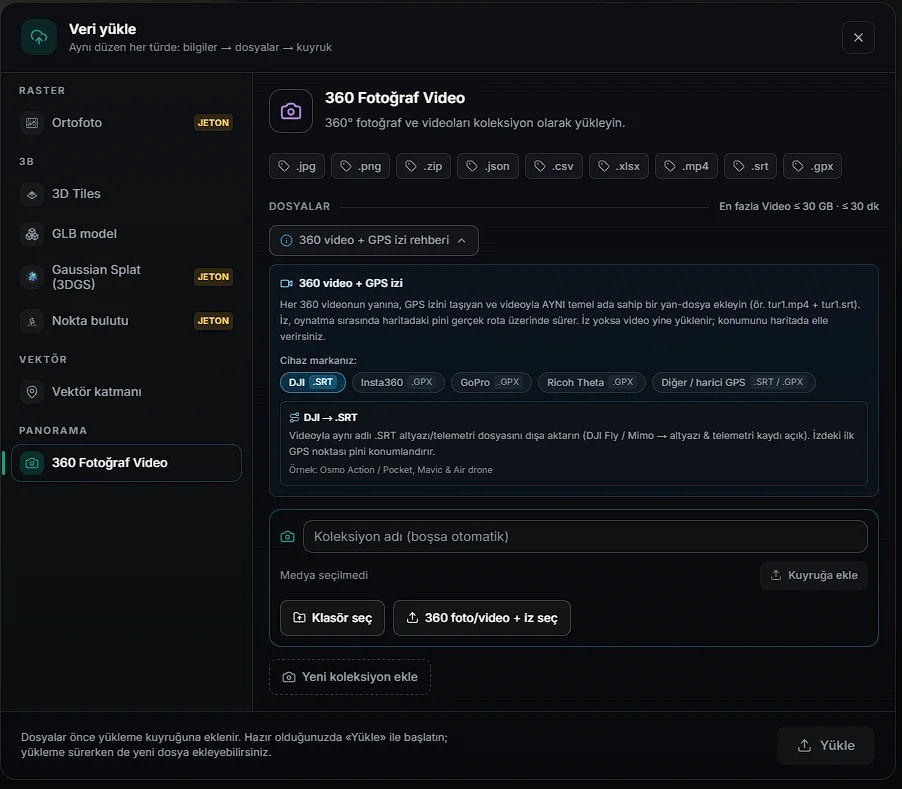
Choosing the sidecar during upload
Provide the video and the sidecar together in the same selection — tick both in the file picker or drag them in as a pair. Track files are flagged with their own icon in the upload list, so you can confirm the pairing was made before sending.
Technical limits: .mp4, .webm or .mov video with a 2:1 equirectangular ratio (width twice the height); a video whose ratio is not 2:1 is not treated as 360° and is added separately to the Videos group in the layer panel as a flat video. You can also upload flat videos directly from the Media card's Flat video tab; a .SRT/.GPX track with the same name gives the location there too. Up to 30 GB and 30 minutes per file. The longest edge may be at most 8192 pixels. 360° video upload is part of the Professional plan; on the Free plan video (360° and flat) cannot be uploaded. Professional includes 30 minutes of video quality conversion per month; every extra 10 minutes costs 1 token (Plans and tokens). Every file above 20 MB is sent with resumable chunked upload — if the connection drops, the upload continues rather than restarting. See Supported Formats for all limits.
No track file? Nothing is lost: upload the video without position and place it on the map manually. There is no route sync, but the video still plays.
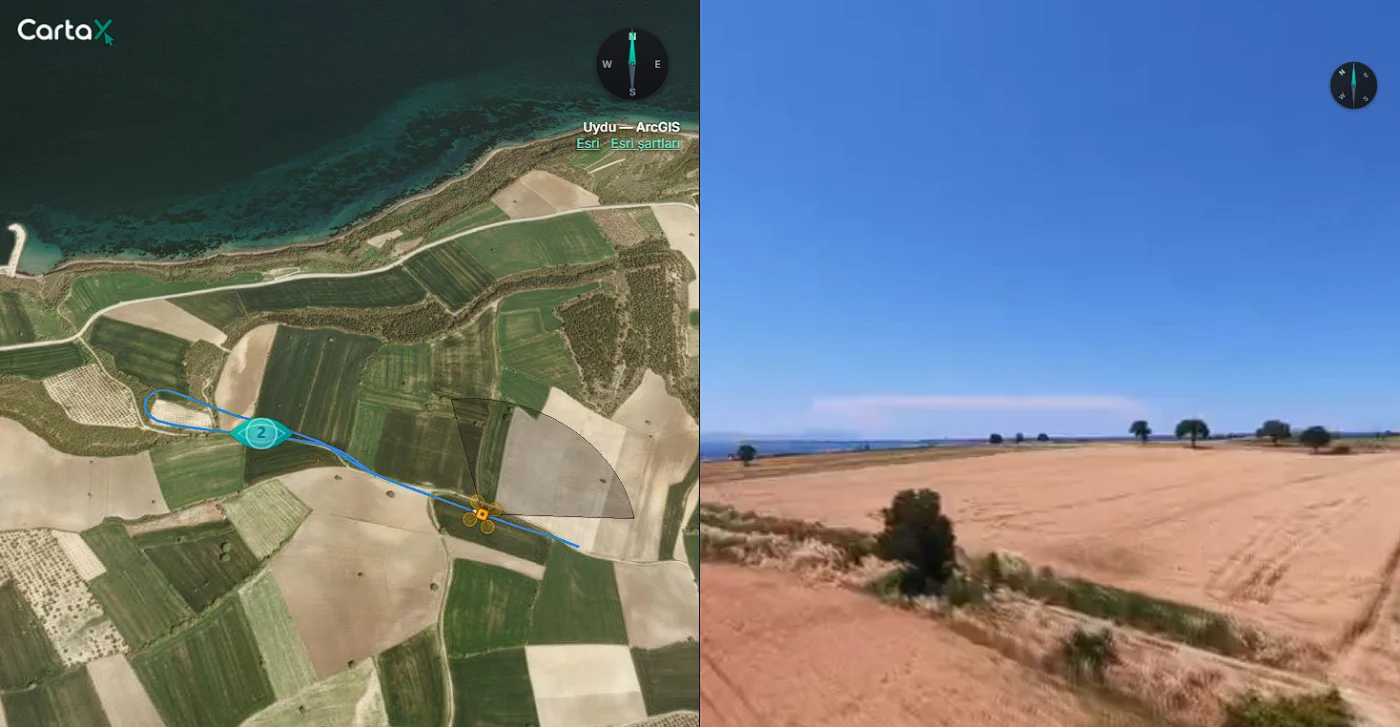
Route on the map + playback sync
Once the track is parsed, a route line is drawn on the map with a position marker on it. Playing the video moves the marker along the route in real time; scrubbing the timeline jumps the marker instantly. The sync runs from video to map — the video timeline is what determines the position.
A view cone accompanies the marker, showing which direction you are currently looking. As you turn the 360° view the cone rotates with it, which removes the "which façade am I looking at?" problem entirely.
Practical uses:
- Corridor inspection — fly a road, channel or powerline; scrub to the relevant second on the timeline and the marker shows exactly that chainage on the map.
- Site walkthrough — hand the client a navigable site rather than a single video file.
- Defect localisation — read the coordinate of something you spotted in the video and leave it as a note.
Extracting geotagged frames from video
Video flows nicely but is awkward to work on. So during upload you can generate geotagged 360° photos at intervals along the route. The interval is chosen as a distance: presets of 25 / 50 / 100 m (default 50 m), or a custom value between 10 and 500 m; at most 300 frames are extracted per video. At every interval a frame is captured, tagged with its position on the track and shown as a point on the map. The result is a street-view version of your own site: you step between points forwards and backwards.
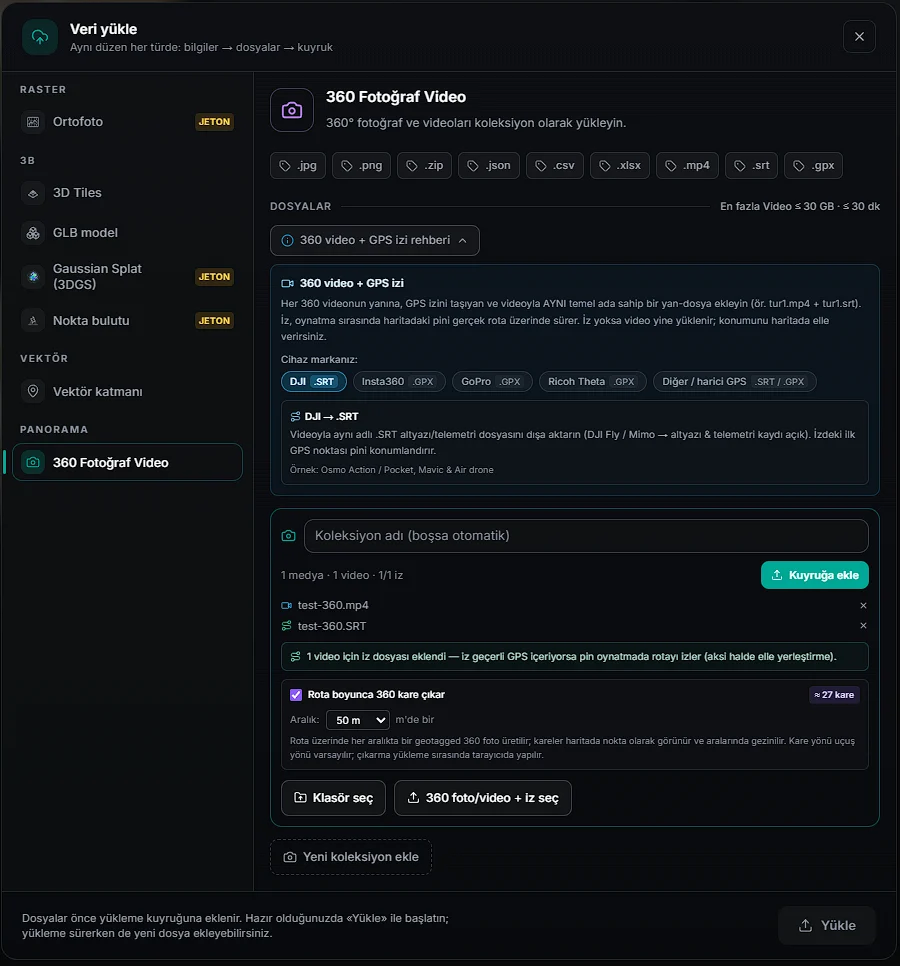
Three things to know:
- Extraction runs in the browser, during upload — no extra load on the server, no tokens spent, but do not close the tab. Frame extraction is disabled on phones and tablets (it works on a computer) and is not available on the Free plan.
- Frame heading is assumed to be the direction of travel — accurate when the camera is fixed to the airframe, approximate when it was turned by hand.
- Codec matters. If the browser cannot decode the video (usually HEVC/H.265), frames cannot be extracted; try Chrome, Edge or Safari. Even if extraction stops midway, the frames produced so far and the video itself still upload — the work is not thrown away.
Summary
| Question | Answer |
|---|---|
| Does video carry GPS? | No — position comes from the sidecar |
| Which formats? | DJI .SRT; Insta360/GoPro/Ricoh .GPX |
| Naming rule? | Sidecar base name must match the video |
| Size limits? | .mp4/.webm/.mov, 2:1 ratio; 30 GB / 30 min; longest edge ≤ 8192 px; chunked upload above 20 MB |
| What does sync do? | Marker follows the route, cone shows view direction (video → map) |
| Frame extraction? | Every 25/50/100 m along the route (custom 10–500 m), max 300 frames, in-browser |
| Which plan? | 360° video is part of the Professional plan |
| No track file? | Video uploads unpositioned and is placed manually |