Querying Turkish Cadastre (TKGM) Parcels on Your Map
Query Turkish cadastre (TKGM) parcels and see block/parcel info and boundary geometry next to your own data.
2026-08-17 · 4 min read
You have the drone orthophoto, but on its own it does not answer one question: where exactly does the boundary run? Instead of opening cadastral data in a separate tab and comparing by eye, you can have the parcel boundary drawn directly on top of your own orthophoto. That is what the TKGM parcel query in CartaX does.
What the TKGM query is and who can use it
TKGM (Tapu ve Kadastro Genel Müdürlüğü) is Turkey's official land registry and cadastre authority. CartaX queries that service from the map and draws the returned block/parcel information and boundary geometry into your scene.
Access depends on a Turkey location signal; the query is available while you work from Turkey.
The parcel query is available on the Free plan too. The reason is technical: the query does not go through CartaX's servers but straight from your own internet connection to TKGM. It costs us nothing and has no shared quota, so there is no reason to gate it. For the same reason queries are subject to TKGM's own daily limit: when it runs out a warning appears on screen, and the allowance renews the next day.
The data belongs to TKGM and is subject to TKGM's terms of use. Query results are informational. For official transactions, staking out and legal processes, the document issued by the land registry office governs; the geometry on screen does not replace a survey sketch.
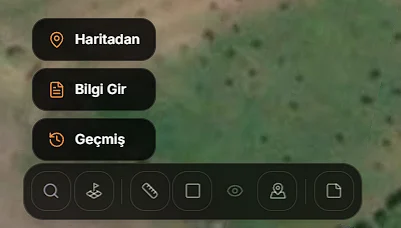
Selecting a parcel on the map
There are two query routes, and they serve different needs:
1. Click on the map. Switch to the "From map" mode and tap the location you care about; the parcel at that coordinate is retrieved. This is the fastest way to find out which parcel a structure you saw on site falls into — you do not need to know the block or parcel number.
2. Enter details (block / parcel). Choose province → district → neighbourhood, then type the block (ada) and parcel (parsel) numbers. Use this when you already hold registry information and want to know where the parcel is. When the result arrives, "Fly to parcel" takes the camera straight there.
The result card lists the block/parcel numbers and the parcel's attribute information, and the boundary geometry is drawn on the map at the same time. Clicking the parcel on the map opens the TKGM window: province/district, neighbourhood, locality, block/parcel, map sheet, land use, computed area and perimeter. Every field, including the deed area and the ground type, is in the panel that opens from the i (information) button on the layer row.
The same query window also exists in the Analysis workspace; a parcel found there is attached to the epoch cards you are comparing.
Keeping results as a layer
Every query lands in the Parcel queries history, so you never need to re-query the same parcel — pick it from the list and it is drawn again. Entries you no longer need can be deleted.
Results can be made permanent in two ways:
- Add to project — the parcel boundary becomes a vector layer in your project, named
block/parcelby default and renameable. It styles and toggles like any other layer. - Export to KML — download the geometry as
block_parcel.kmlfor Google Earth or your CAD/GIS package.
Occasionally the service may return geometry that cannot be used; the app does not stay silent about it — "invalid parcel geometry" or coordinates falling outside the WGS84 range (a source CRS problem) are reported explicitly.
Overlaying with your own data
This is where the value actually appears: the parcel boundary is drawn on top of your data, not beside it.
- Orthophoto + parcel — you see at a glance whether a structure, road or excavation crosses the boundary.
- Point cloud + parcel — view the boundary in 3D and measure real distances to a building corner.
- Your DXF/Shapefile + parcel — compare your own setting-out drawing against the cadastral boundary in one scene. How vector files are processed: Supported formats and limits.
A practical note: if you see a few decimetres of offset between your orthophoto and the cadastral boundary, that is usually not an error but a difference in accuracy class. A cadastral boundary is a digitised line rather than a measured value; for precision work, the field survey governs.
Summary
| Question | Answer |
|---|---|
| What is the source? | TKGM — Turkey's official cadastre service |
| Who can use it? | Turkey location; available on the Free plan too |
| Query routes? | Tap on the map, or province/district/neighbourhood + block/parcel |
| What comes back? | Block/parcel numbers, attributes, boundary geometry |
| Is it stored? | History list plus save-as-layer |
| Export? | KML |
| Does it replace official documents? | No — it is informational |