Uploading Data: One Window, Three Lanes, Two Stages
The CartaX upload window, the parallel lanes of the upload queue, the difference between "uploading" and "processing", and which uploads spend tokens.
2026-09-26 · 9 min read
A day in the field rarely produces one file: an orthophoto, a point cloud, a few boundary files, maybe a 360° tour. CartaX takes all of them through one window and manages the queue itself — a small boundary file never waits behind a huge folder that is still uploading.
The upload window
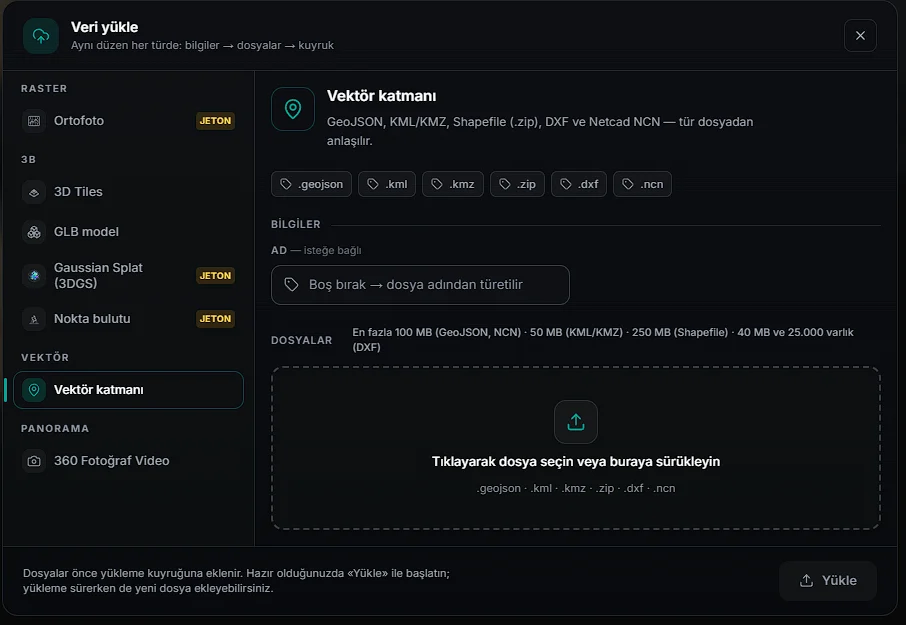
Every data type enters through the same window, and the layout is identical for all of them: details → files → queue.
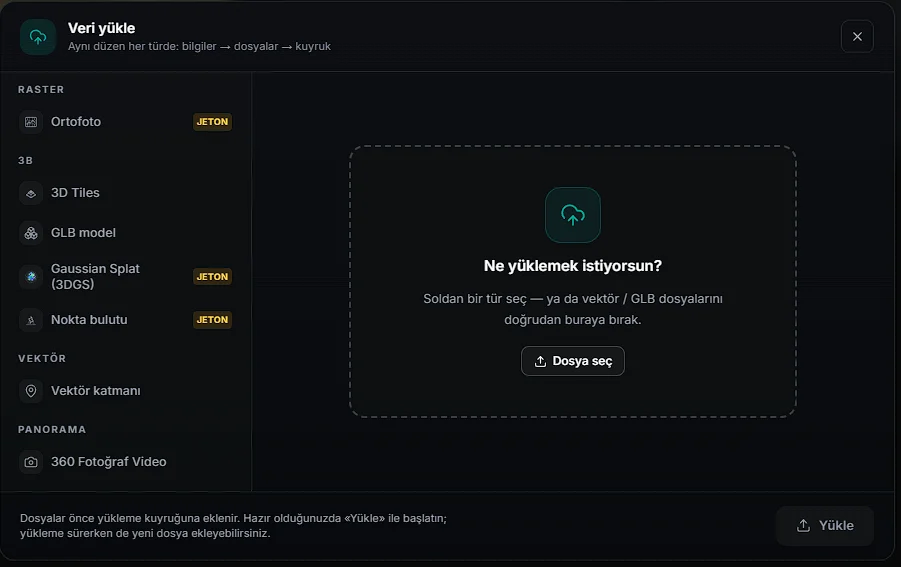
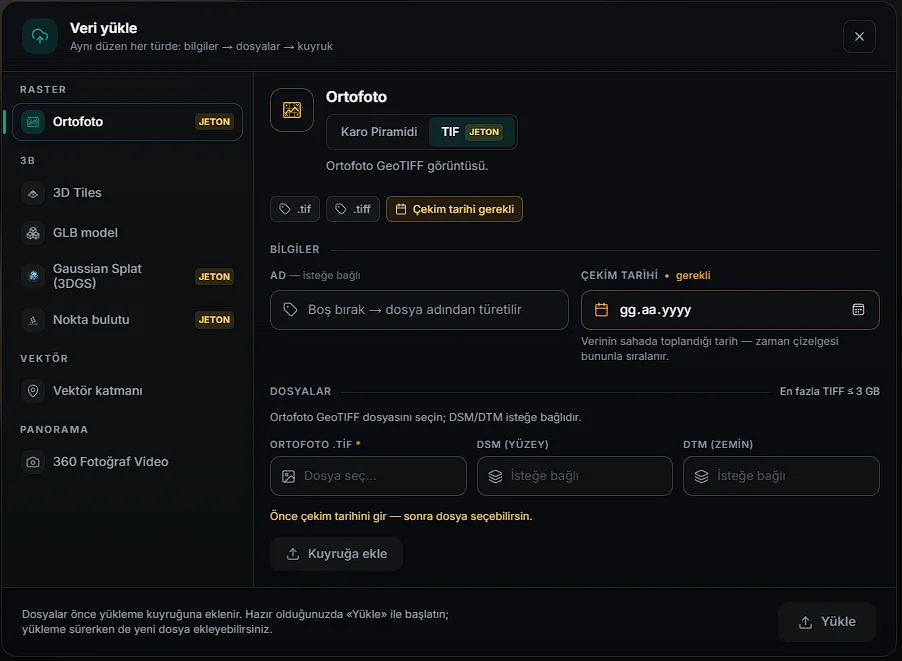
The type strip on the left is grouped under four headings: Raster (Orthophoto), 3D (3D Tiles, GLB model, Gaussian Splat, Point cloud), Vector and Media. Some types are split into tabs; for example Orthophoto: Tile Pyramid, COG (ready, token-free) and TIF (cloud conversion, uses tokens); Media: 360° (photo and video collection) and Flat video.
A few things are the same for every type:
- Name is optional; leave it blank and it is derived from the file name.
- Capture date is required for some types — it is the date the data was collected in the field, and the timeline sorts by it. Orthophoto, point cloud and 3D Tiles require it; vector, GLB, 3DGS and 360 do not.
- Accepted extensions are shown as badges under each type's heading.
- Some types show a maximum line at the top right: that type's size limit.
- A yellow TOKEN badge means the type needs cloud processing.
Only vector and GLB files can be dropped into the window without picking a type; for everything else you choose a type on the left. The window opens from inside a project — files land in whichever project you are in.
Ready or raw? The only distinction that matters
Orthophotos and point clouds have two paths, and the difference decides everything.
| Ready folder | Raw file | |
|---|---|---|
| What you provide | Processed z/x/y tile folder or octree | GeoTIFF, LAS/LAZ |
| Cloud processing | None | Yes — it is converted |
| Tokens | None | Spends tokens |
| Size | Up to your storage quota | 20 GB / 5 gigapixels for orthophoto, 5 GB for point cloud |
| On the Free plan | Can be uploaded | Locked |
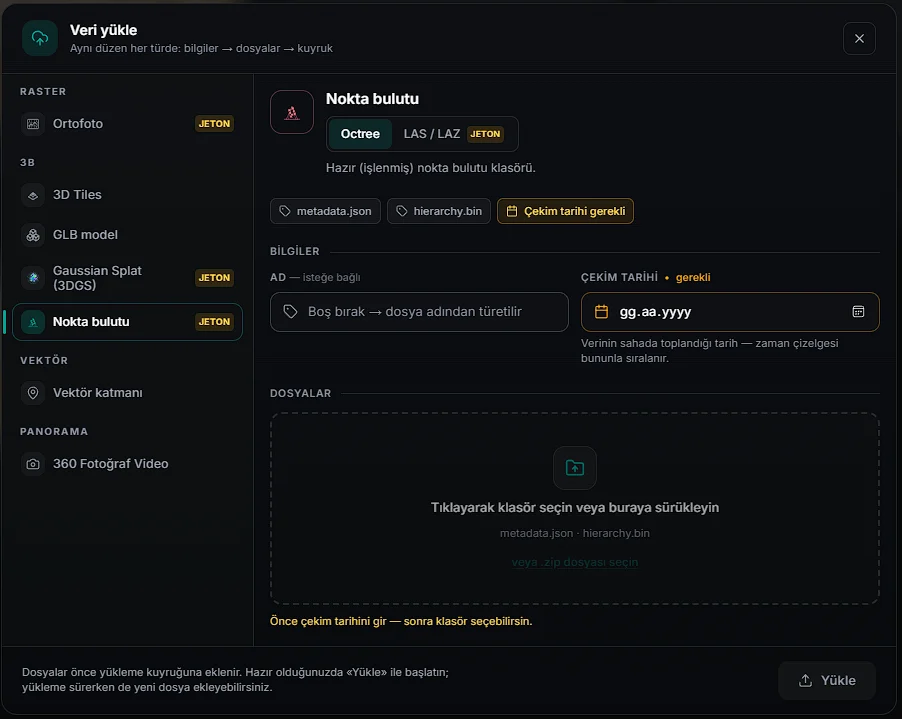
Raw LAS/LAZ is bound by two limits at once: 5 GB and the cloud conversion's 150 million point ceiling. The point count is read from the file header before the upload starts; a file over the ceiling is not even queued, and the screen suggests converting it with CartaX Studio and uploading the ready folder instead. If the header cannot be read you only get a warning.
For a raw GeoTIFF the pixel count is read from the header before the upload starts, too: the conversion price is calculated from it (2 gigapixels = 1 token) and shown before the file is queued. A file over 5 gigapixels, or one whose dimensions cannot be read from the header, is not queued — a job whose price is unknown is never started.
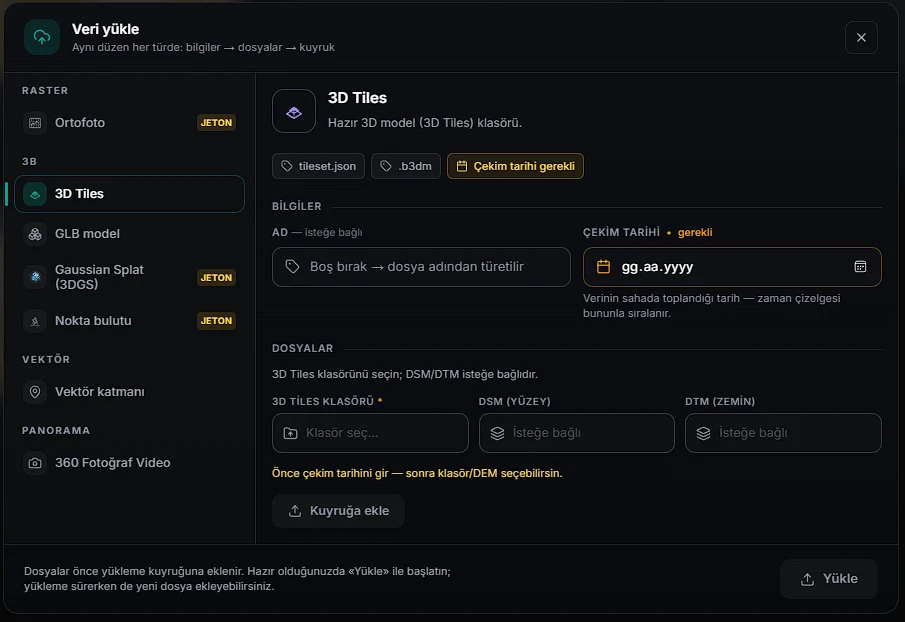
Vector, 3D Tiles, GLB and 360 collections arrive ready: they spend no tokens and appear on the map as soon as the upload finishes (on Professional, DXF is processed on the server, which can take a few minutes). The one exception is video (360° and flat): it plays from the original file as soon as the upload finishes, then goes through a quality conversion — Professional includes 30 minutes of that conversion per month, and every extra 10 minutes costs 1 token (details).
The queue: three lanes, at most four parallel jobs
Files are not sent immediately; they enter a queue first. The queue does not run one at a time — it runs in parallel in a way that keeps jobs from blocking each other.
| Lane | Concurrent | What runs in it |
|---|---|---|
| Heavy | 1 | Multi-file folders — 3D Tiles, point clouds, tile pyramids — plus single files over 64 MB |
| Fast | 2 | Small single files: vector, small GLB, small orthophoto |
| Media | 1 | 360 collections and videos |
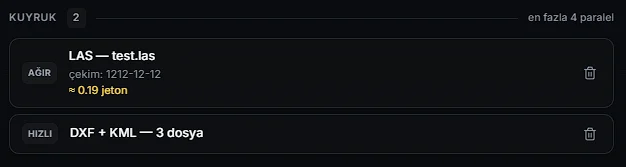
The HEAVY / FAST badge on a queue row says which lane the job will run in. Multiplying jobs that already saturate the connection does not shorten the total time, which is why the heavy lane is single. At most four jobs upload at once (1 heavy + 2 fast + 1 360) — there is no such thing as unlimited parallel uploading.
In the queue you can: add many files of different types at once, add new files while an upload is running (they join automatically), remove an item that has not started, close the queue and keep working, and retry failed items with a single button.
Files over 20 MB are split into parts and the parts are sent in parallel. If the connection drops for a moment, only that part is retried — nothing starts over.
Don't confuse the two stages: uploading ≠ ready
Once an upload starts, a small indicator stays at the bottom of the screen. It describes two distinct stages.
| State | What is happening |
|---|---|
| Uploading %… | The file is being sent from your computer. The percentage belongs to this. |
| Processing in the cloud | Sending is done, conversion is running. The layer becomes ready when it finishes. |
| Ready | The layer is usable on the map. |
| Processing failed | Conversion failed; retry from the layer panel. |
The second stage exists only for cloud-processed types — raw LAS/LAZ, raw GeoTIFF, raw 3DGS. Ready folders and vectors are usable the moment the upload ends.
The upload lives above the app: you can move between projects and screens without interrupting it. Refreshing the page or closing the tab does stop it — the browser warns you first. The queue is bound to a project: while an upload is running you cannot start a new one in a different project.
Retry failed sends only the files that did not upload; the ones that did are never sent twice.
Which uploads spend tokens?
Tokens are spent only where cloud processing is needed. Uploading itself is free — what costs tokens is the conversion.
| Spends tokens | Free |
|---|---|
| Raw LAS / LAZ point cloud | Ready octree folder |
| Raw orthophoto GeoTIFF (.tif) | Tile pyramid folder, ready COG |
Raw 3DGS .ply — map target |
3DGS indoor scene |
| Cloud photogrammetry from photos | 3D Tiles · GLB model |
| Video (360° and flat) — the part above the 30 min monthly quota | Vector layer · 360° photos, video within the quota |
The estimate appears in the bottom strip before the upload starts — estimated tokens next to your current balance. If the balance is short, the upload never begins.

| Type | Estimated from |
|---|---|
| Point cloud | Point count — 100 million points = 1 token |
| Orthophoto | Pixel count (read from the file header) — 2 gigapixels = 1 token; compression does not change the price |
| 3DGS (map) | Source file size — 2 GiB = 1 token |
| Video (360° and flat) | Video duration — 30 min per month included, every extra 10 min = 1 token |
Amounts are rounded up to 0.25 tokens; a job costs at least 0.25 tokens.
For point clouds the number on screen is an estimate; for orthophotos the amount is final before the upload (the pixel count is measured and does not change later). Tokens are charged when the job finishes successfully. See Plans and tokens for the rules.
All three token-spending conversions can be done for free on your own computer. LAS/LAZ, orthophoto GeoTIFF and 3DGS
.ply— CartaX Studio converts them locally and the resulting ready folder uploads to CartaX without tokens. The app reminds you too: if you are out of tokens or your plan does not allow it, the warning carries a Studio link.
FAQ
| Question | Answer |
|---|---|
| Can I drag and drop any file? | Only vector and GLB; other types need a card selected first |
| How many files upload at once? | Four at most: 1 heavy + 2 fast + 1 media |
| Upload finished — is the data ready? | Not for cloud-processed types; a conversion stage follows |
| Can I close the tab? | No; the upload stops. Moving to another page is fine |
| My connection dropped — start over? | No; files over 20 MB go in parts and only that part is retried |
| Does uploading spend tokens? | No; conversion does |
| A LAZ over 150 million points? | It is not queued; convert with Studio and upload as an octree |