Getting Started with CartaX: Your First Project
From signing in to your first upload, measurement and PIN-protected share — an end-to-end guide to setting up your first CartaX project.
2026-08-17 · 4 min read
This guide walks you through your first CartaX project end to end: uploading data, viewing it on the map, measuring, and sharing securely. Everything happens in the browser; there is nothing to install.
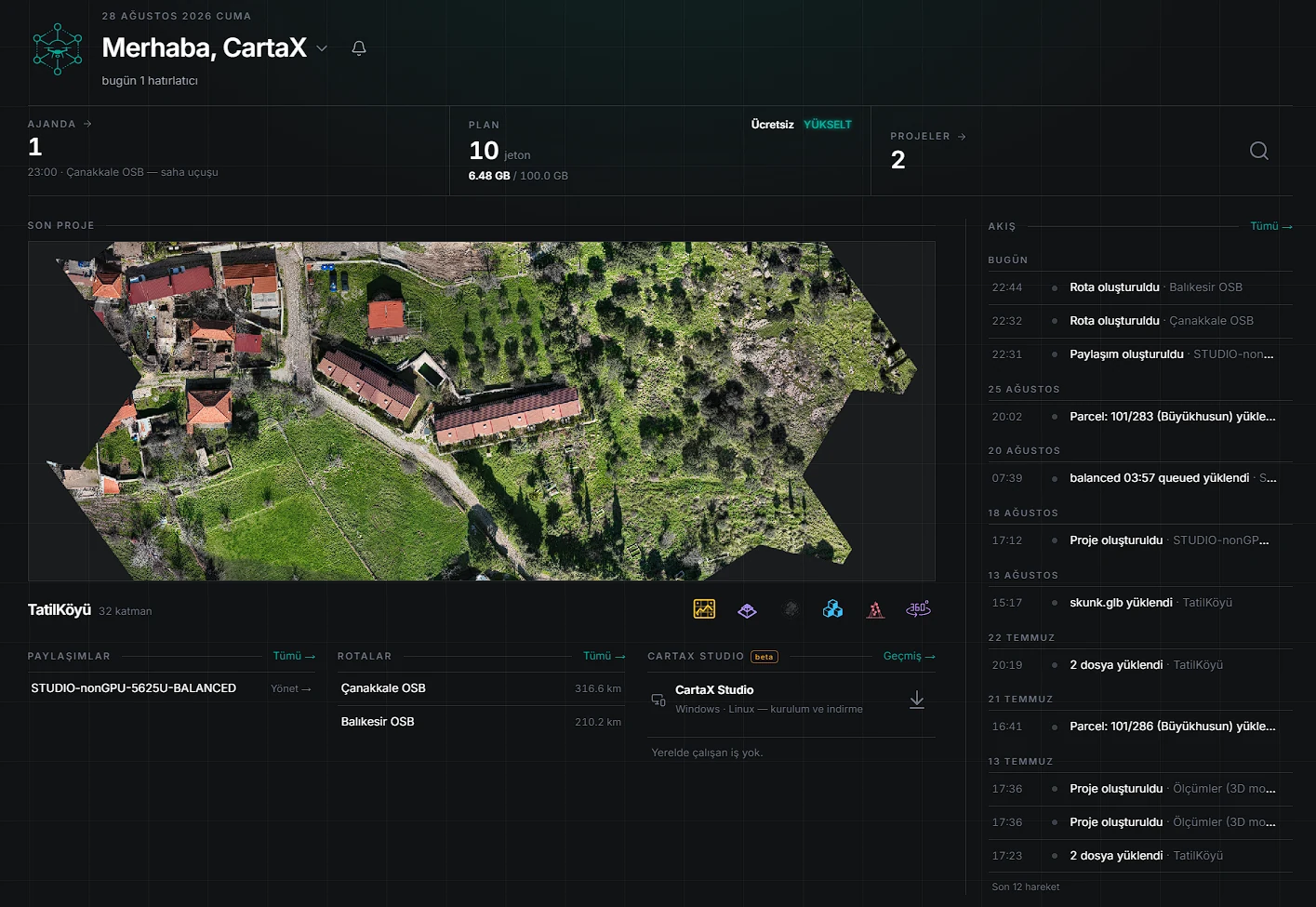
1. Sign in and create a project
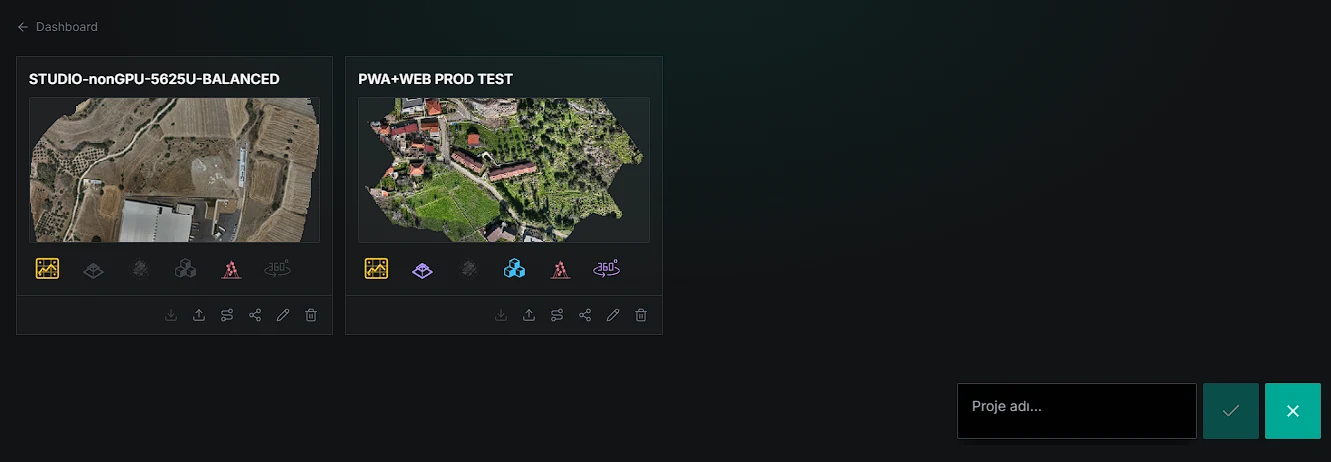
After signing in, create a new project with the + button in the bottom-right corner; your existing projects are listed in the Projects panel. Projects are the unit of work that keeps your layers, measurements and shares together. The Free plan allows 1 project; the Professional plan allows 100.
2. Upload your data
The Upload data dialog — opened from the map or from a project card in the Projects panel — is organized into cards by data type: point cloud (LAS/LAZ), orthophoto (GeoTIFF/COG; the DSM/DTM elevation model is attached as a companion file of this card), vector (GeoJSON/KML/SHP/DXF), 3D model (3D Tiles/GLB), 3DGS (Gaussian Splat) and media (360° photos and video, flat video). Drop your file on the matching card; see Supported Formats for format and size limits.
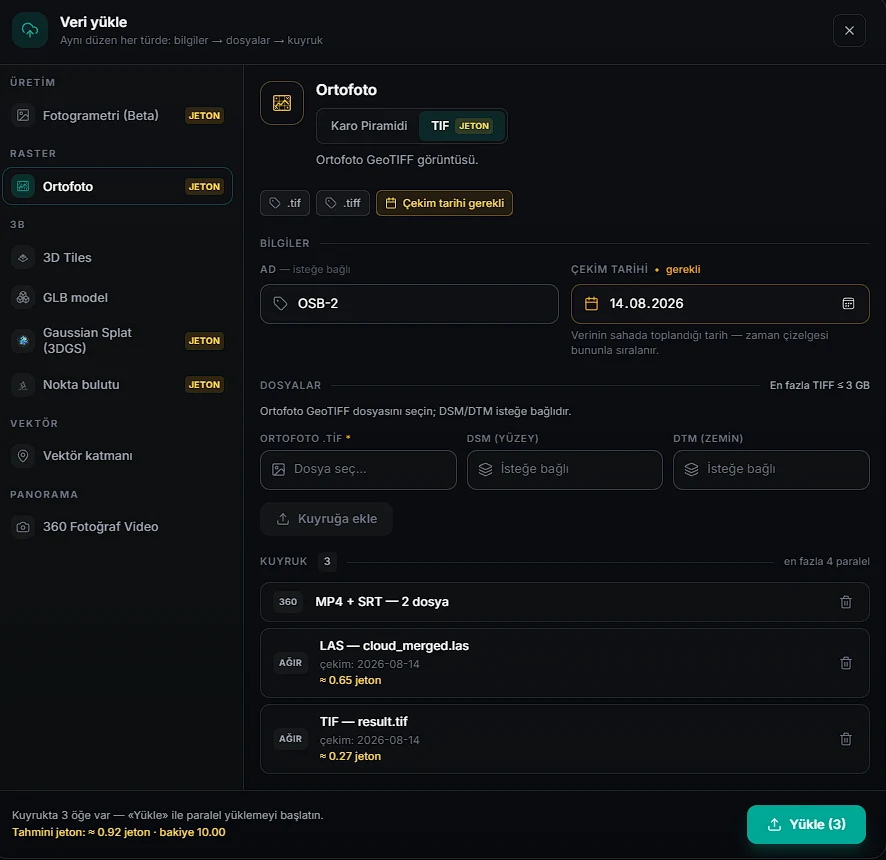
Raw LAS/LAZ and GeoTIFF uploads are converted in the cloud (using processing tokens; requires the Professional plan — locked on the Free plan) and appear in your layer list when ready. The token-free alternative: run the conversion on your own computer with CartaX Studio and upload the ready output. Vector files spend no tokens: most are processed instantly in the browser, while DXF on Professional is prepared on the server within a few minutes.
3. View on the map
All your layers come together on a single globe — there is no separate 2D and 3D application. The layer panel groups layers by type on its own — Orthophoto, 360/Panorama, 3D Tiles, Gaussian Splat, GLB Model, Parcel Queries, Vector — with a count and a group eye next to each. You never create folders or sort anything.
2D ↔ 3D switches by itself: opening a 3D model (3D Tiles, GLB, a 3DGS map model) moves the map to the terrain-backed 3D view and closes orthophotos; opening an orthophoto returns it to a top-down plan and closes 3D content. Vector drawings and 360 points stay in both views. You can also pick 2D/3D by hand from the Base map and surface button at the bottom right; that choice holds until you select another layer.
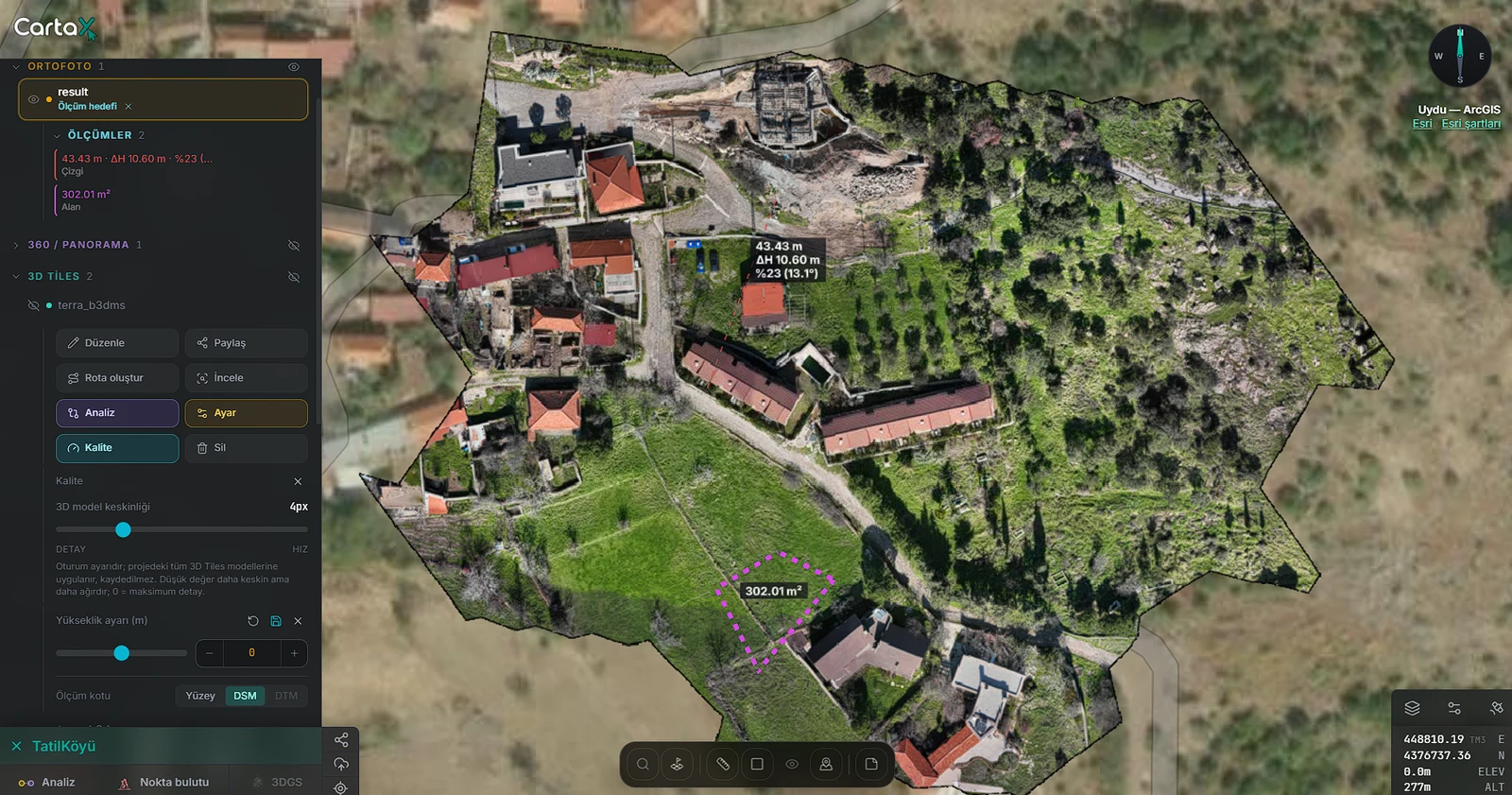
4. Measure and analyze
The map toolbar holds four measurement tools: Line (distance; with elevation data also height difference, slope and a 2D profile chart), Area, Line of sight (3D view only) and Point (coordinate + elevation). The drawing rule is the same for all of them: left click adds a point, right click finishes. Measurements are saved automatically under the selected layer and appear in shares in the same place.
Cut-fill and side-by-side comparison of two dates live in the Analysis workspace (Professional plan). Point clouds open in their own viewer, which offers distance, area, height, profile, angle, circle and a box volume tool. See measurement tools.
5. Share with a PIN-protected link
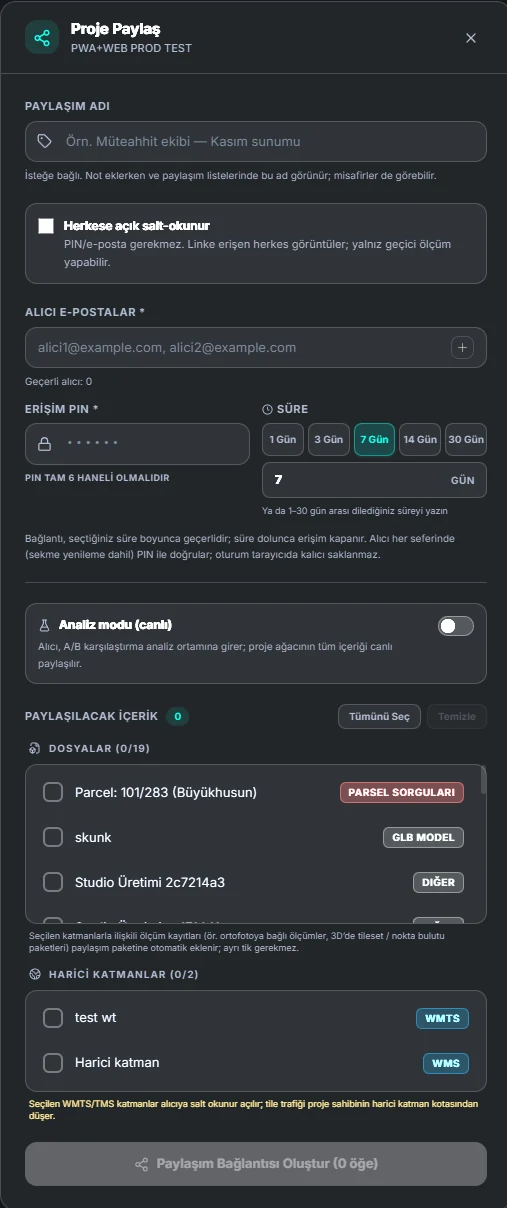
To share your project, create a link: enter the recipient's e-mail, pick a validity period (1-30 days or a custom date), set your own 6-digit PIN and pass it along to the recipient. The recipient views your data, takes temporary measurements and leaves notes with nothing but a browser. Access closes automatically when the link expires. On the Free plan sharing is limited to a single public link: at most 3 days, no PIN and no recipient e-mails.
Next steps
- What are LAS/LAZ files? — know your point cloud formats
- Viewing point clouds in the browser — colour modes, sections and clipping
- What is a COG? — the backbone of the orthophoto workflow
- DSM vs DTM — the choice that decides elevation and volume results
- PIN-protected sharing — duration, guest notes and revocation
- FAQ — common questions on plans, limits and sharing