Dashboard, Agenda and Notifications: Start the Day with a Summary, Not a Map
The sections of the CartaX dashboard — agenda reminders, the activity feed, the notification bell, Ctrl+K search, the plan and token box; and installing CartaX as an app.
2026-09-20 · 7 min read
The questions someone working with map data asks at the start of a day are predictable: What's on today? Did the job I started overnight finish? Did the client write anything on the project I shared? Will my tokens last? The CartaX dashboard answers them on one screen, without opening the map.
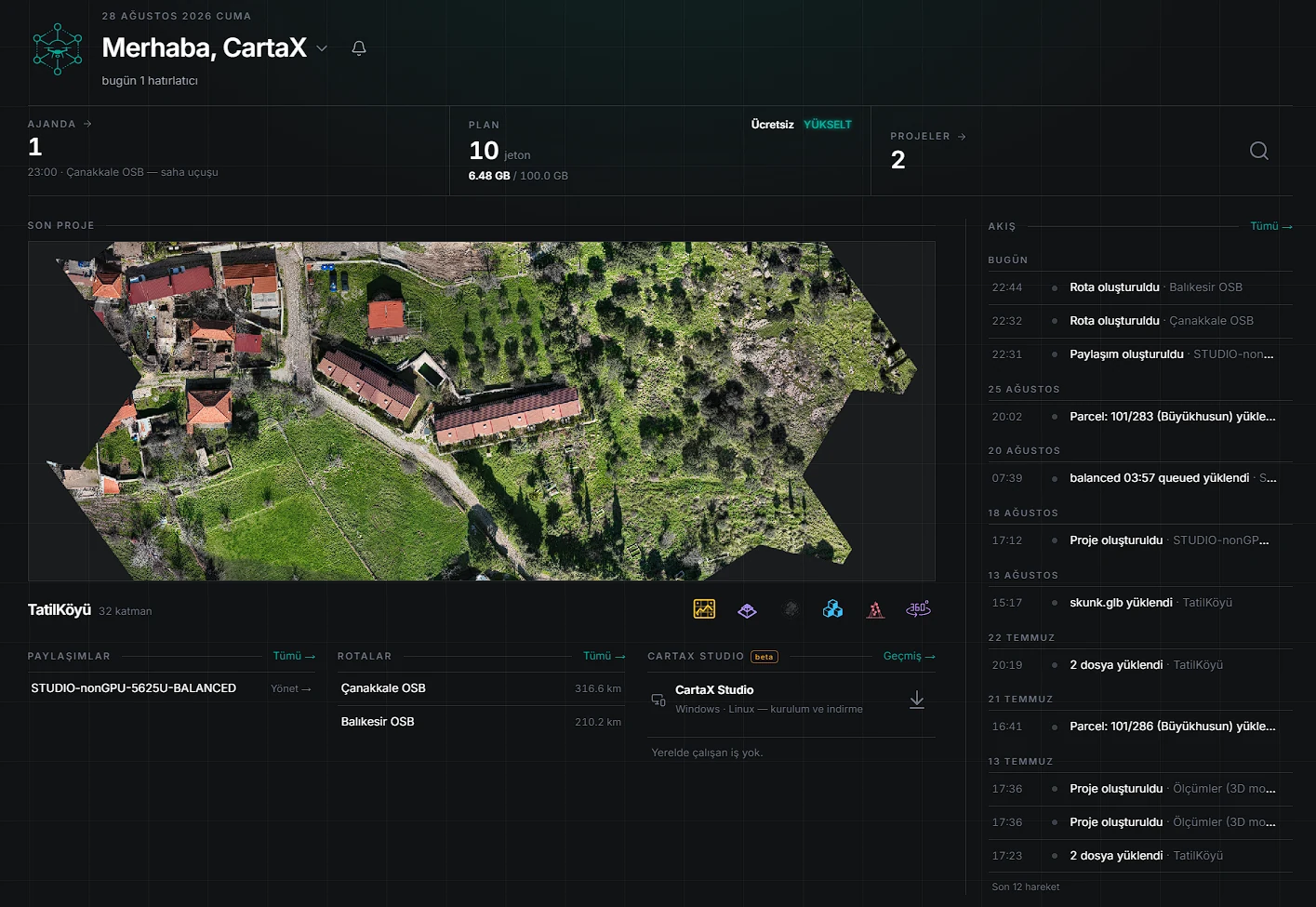
At the top sit the date, a greeting and the notification bell. The summary line beneath it appears only when there is something to say: "2 jobs queued · 1 unread note · 3 reminders today". Anything at zero is not written at all. "Unread note" is a shortcut — clicking it opens the note directly.
The dashboard is not customisable: sections cannot be added or moved. It is also not a reporting screen; it shows no statistics or analytics charts.
Agenda: note the job next to the job
Small tasks are easy to lose in the rhythm of fieldwork — a permit document, a measurement to send a client, preparation for the next flight. The agenda lets you note them where you work; the list is saved to your account and is the same on every device.
To add a reminder: click the AGENDA box on the dashboard → Add reminder → type a short title in "What should we remind you about?" → pick a date and time, or tick All day → optionally add a note and link it to a project → Add (Enter in the title works too).
The list groups itself: Overdue · Today · Tomorrow · Later. When a task is done you tick the check on its row; completed items live in an archive and can be restored.
When a reminder comes due it lands in the bell — at 09:00 that day for all-day entries. If CartaX is installed as an app and notifications are allowed, it reaches your phone or computer too.
What the agenda does not do: no email or SMS reminders, no calendar sync (Google Calendar, Outlook), no recurring reminders. Each reminder fires once; change its date and it fires again at the new time. Reminders are personal and are not shared with your team.
Feed: the account's logbook
The feed answers "what did I last do, and did the job I started overnight finish?" Activity is grouped by day (Today, Yesterday, 5 September…), and each row carries the time, the event and the related project or file name. Clicking a row opens the project on the map.
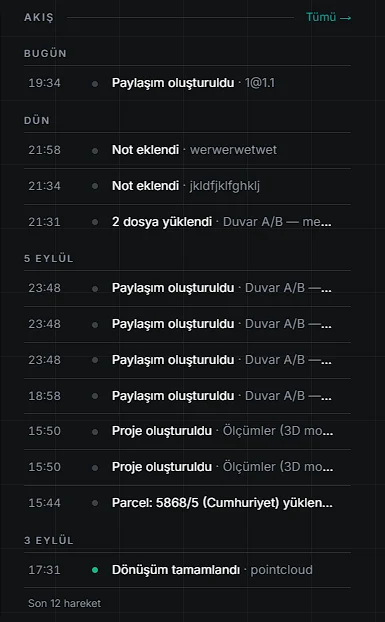
| Activity | When |
|---|---|
| Project created | A new project is opened |
| … file uploaded | A file is uploaded; uploads to the same project within an hour collapse into one row |
| Conversion completed | Uploaded data finishes processing and becomes usable |
| Conversion failed | A job ends with an error |
| Share created | A project is shared with a link |
| Note added | A note is left on a project — resolved notes go grey, deleted ones stay orange and struck through |
| Route created | A new route is saved |
The dashboard shows the last 12 activities; All → next to the heading opens the last 50 in a larger window. The feed does not rewrite itself: even resolved and deleted notes leave a trace. But it is not a team audit log — it does not show who did what.
Notifications: the bell collects three things
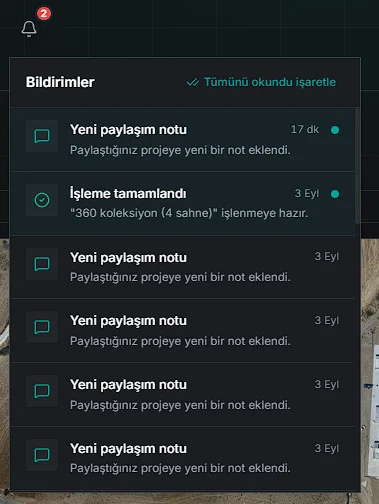
| Notification | When it arrives | Clicking it |
|---|---|---|
| New share note | Someone leaves a note on a shared project | Opens the project and flies the map to the note |
| Processing completed · failed | Processing of uploaded data finishes | Opens the related project on the map |
| Reminder: … | An agenda reminder comes due (09:00 for all-day entries) | Opens the agenda at that entry |
The red badge on the bell shows the unread count and refreshes itself on an open screen. Mark all as read clears the list.
Intermediate stages of production are not notified, only the result; jobs finishing back-to-back in the same project update a single notification row. No email or SMS is sent for notes, job results or reminders.
Search: Ctrl + K
As the number of projects grows, scrolling a list costs time. Click the magnifier or press Ctrl + K (⌘ + K on Mac), type part of what you are after, pick with the arrow keys and press Enter.
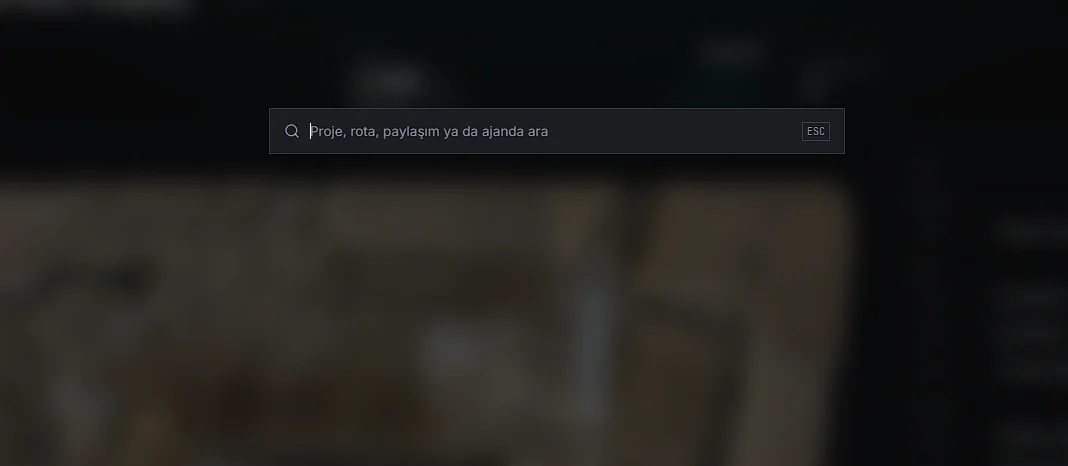
| What it finds | What happens |
|---|---|
| Project (by name) | The project opens on the map |
| Route (by name) | The route screen opens with that route selected |
| Agenda (by title and note, completed items included) | The agenda opens with that entry highlighted |
| A section name ("Projects", "Routes", "Shares") | That section opens |
Turkish characters are handled for you: typing "sisli" finds Şişli, "igdir" finds Iğdır. The best 8 results are listed, each with an icon for its type.
Search covers project and route names, and agenda titles and notes. It does not search inside layers, files or map notes, and it is not an address or place search — place search lives on the map toolbar.
Plan, tokens and storage
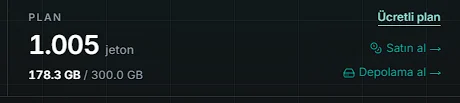
The PLAN box answers three questions: which plan am I on, how many tokens are left, and how much of my storage have I used. Storage turns amber as it fills and red at the limit.
For a Free user the only entry point is UPGRADE. For a subscriber the plan name itself is clickable and opens the Billing tab in account settings; Buy → purchases a token pack, and Storage → shows usage in detail — this period's storage overage and its approval live there too.
The full set of plan and token rules is in Plans and processing tokens; current prices are on the pricing page.
Installing CartaX as an app
CartaX is not downloaded from an app store: it installs to a phone or computer from the browser in one tap (PWA). Installed, it sits on your home screen with its own icon and opens full-screen without browser chrome. No store, no update downloads — new features simply arrive.
| Device | How |
|---|---|
| Desktop (Chrome, Edge) | Press Install in the box at the bottom of the screen; if it isn't there, use "Install app" in the browser menu |
| Android | Tap "Install CartaX" or choose "Install app / Add to Home screen" from the browser menu |
| iPhone / iPad | Open the page in Safari → the Share button at the bottom → Add to Home Screen. In in-app browsers like Instagram or Chrome this option does not appear |
Installing unlocks three things: a full-screen workspace, device notifications (share notes, job results, agenda reminders) and routing from your current location. On phones, CartaX's map and project screens open in the installed app; visitors arriving through a browser are met by an install page.
There is no CartaX app on the App Store or Google Play. CartaX does not work offline, and files cannot be sent to it with "Share" from other apps (gallery, file manager) — files are uploaded from inside CartaX.
FAQ
| Question | Answer |
|---|---|
| Can I rearrange the dashboard? | No; the sections are fixed |
| Do reminders arrive by email? | No; they land in the bell, and on your device in the installed app |
| How many activities does the feed show? | 12 on the dashboard, 50 in the full list |
| Is the feed a team audit log? | No; it does not show who did what |
| Does search look inside layers? | No; it covers projects, routes and agenda entries |
| Can I install it from a store? | No; it installs from the browser as an app |
| Does it work offline? | No |